

 The Shopify Salesforce connector - Sync Made Easy effortlessly imports your legacy data





Managing multiple Shopify stores and syncing them with Salesforce doesn’t have to be complicated. Here’s how you can configure and manage multi-store integration smoothly using Sync Made Easy.
A reliable Salesforce ecommerce integration helps unify customer and order data across platforms, while a seamless Shopify to Salesforce connection ensures accurate syncing, improved visibility, and better control over your sales, fulfillment, and customer management processes.
Step-by-Step: Connect Shopify Multiple Stores with Sync Made Easy
Here’s how to configure Shopify integration for multiple stores using Sync Made Easy:
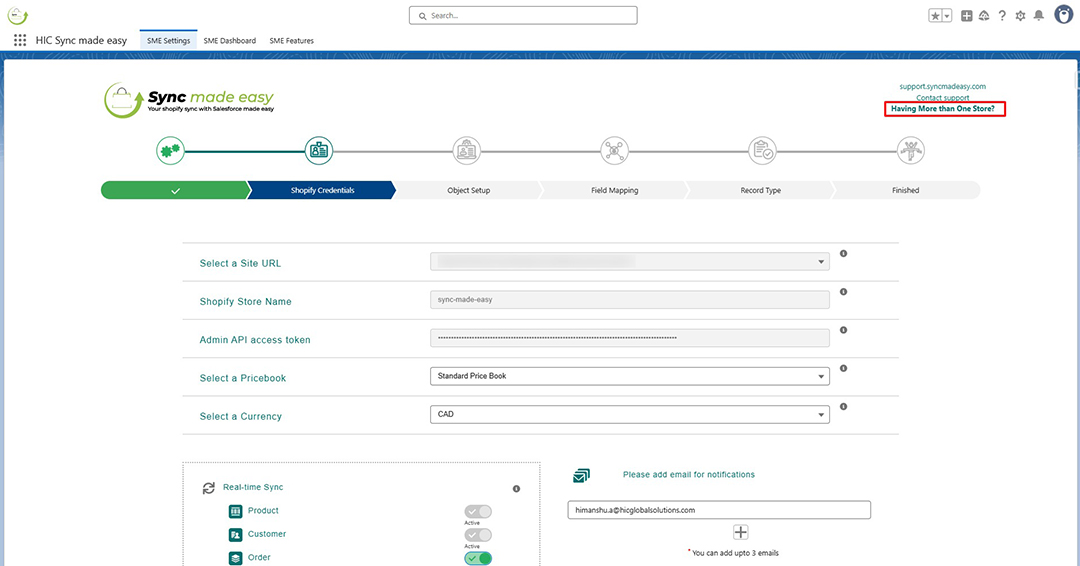
Step 1: Access the Multi-Store Panel
From the main dashboard, click on “Having more than one store?” located in the top-right corner.
This opens the Multi-Control Store Panel, where you can view and manage all connected Shopify stores in one place.
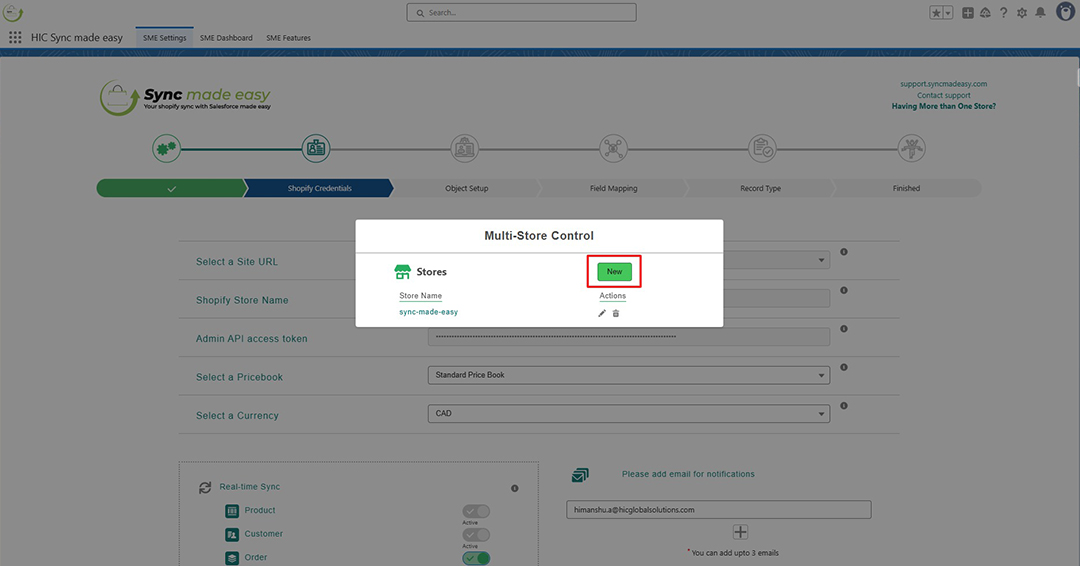
Step 2: Add a New Shopify Store
Inside the multi-store panel, click “New” to connect another store.
You’ll be redirected to the credentials page. Here:
- Enter your Store Name
- Provide your Shopify Access Token
- Click “Check Credential” to validate the connection
Pro Tip:
To generate your Shopify Access Token, log in to your Shopify admin panel and follow the private app token generation process. Make sure to copy and store the token securely, as it is visible only once.
Once the credentials are successfully verified, click “Save & Go to Next Step.”
Your new Shopify store is now connected to Salesforce.
Step 3: Edit or Delete a Shopify Store
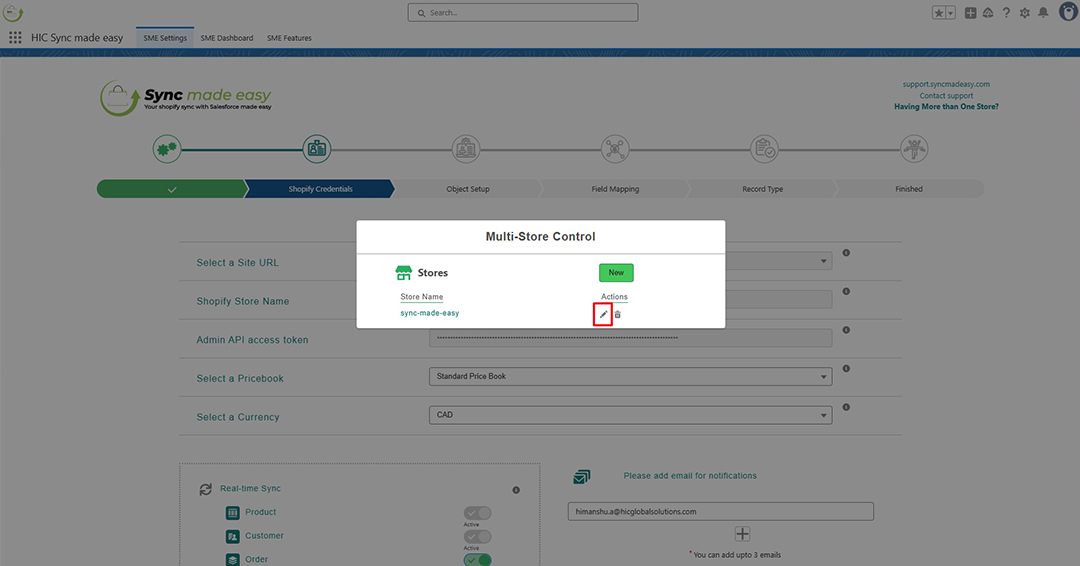
To modify an existing store:
- Click “Having more than one store?”
- Select the store from the panel
- Click the Edit icon to update credentials or store details
- Click Save after making changes
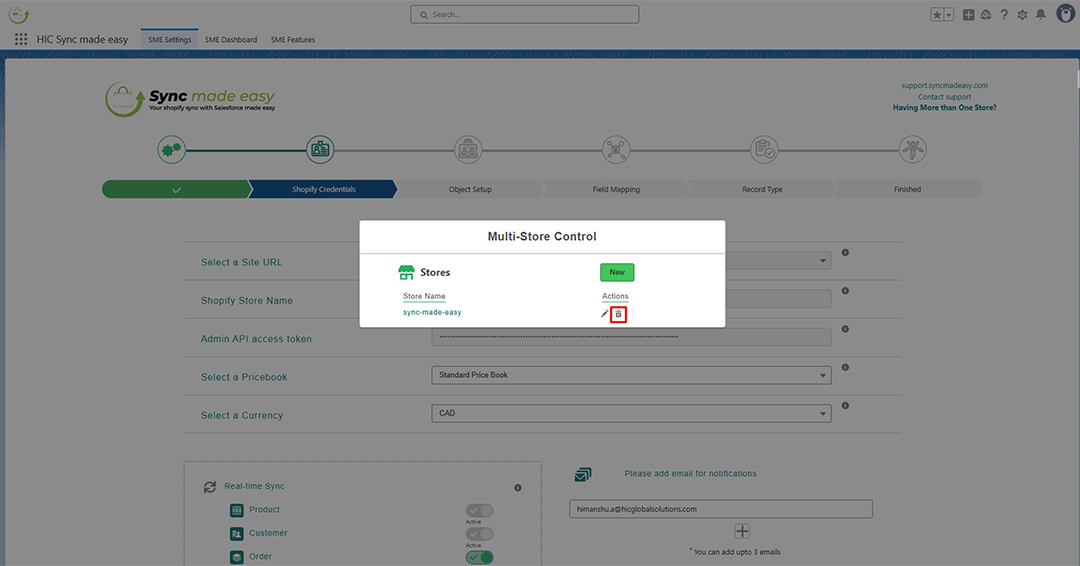
To remove a store, simply click the Trash icon next to the selected store.
Configuring Shopify–Salesforce Integration Settings
After connecting your stores, the next step is configuring how your Shopify data syncs with Salesforce.
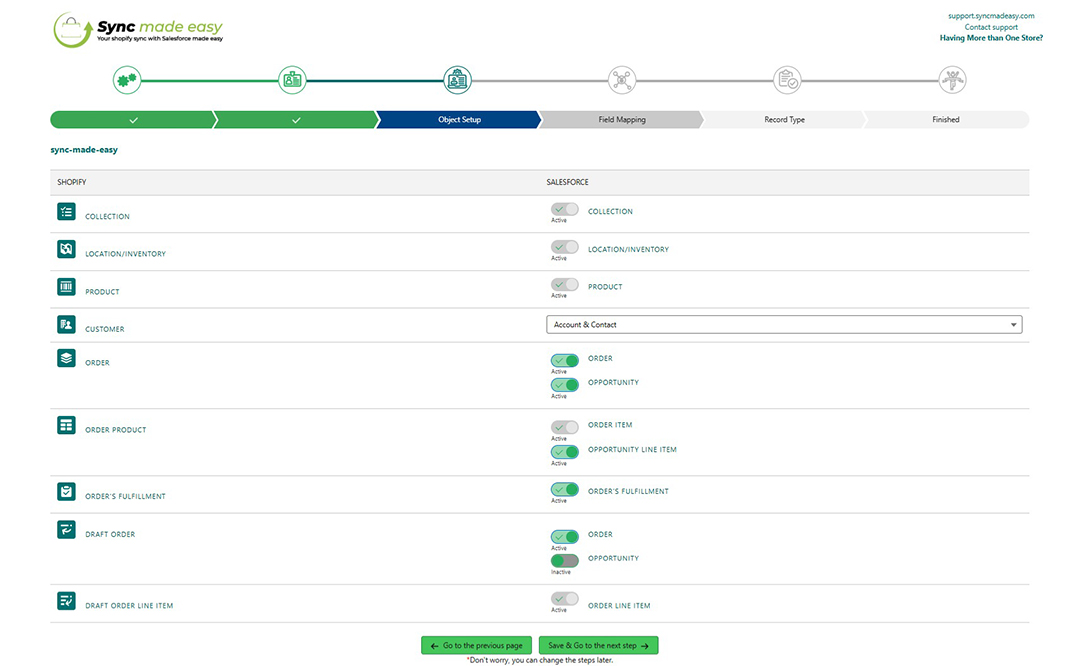
Object Setup
In this section, you can:
- Choose between Person Account or Business Account
- Enable or disable objects such as:
- Opportunity
- Line Item
- Order Fulfillment
Once configured, click Save and Go to Next Step.
Field Mapping (Default & Custom)
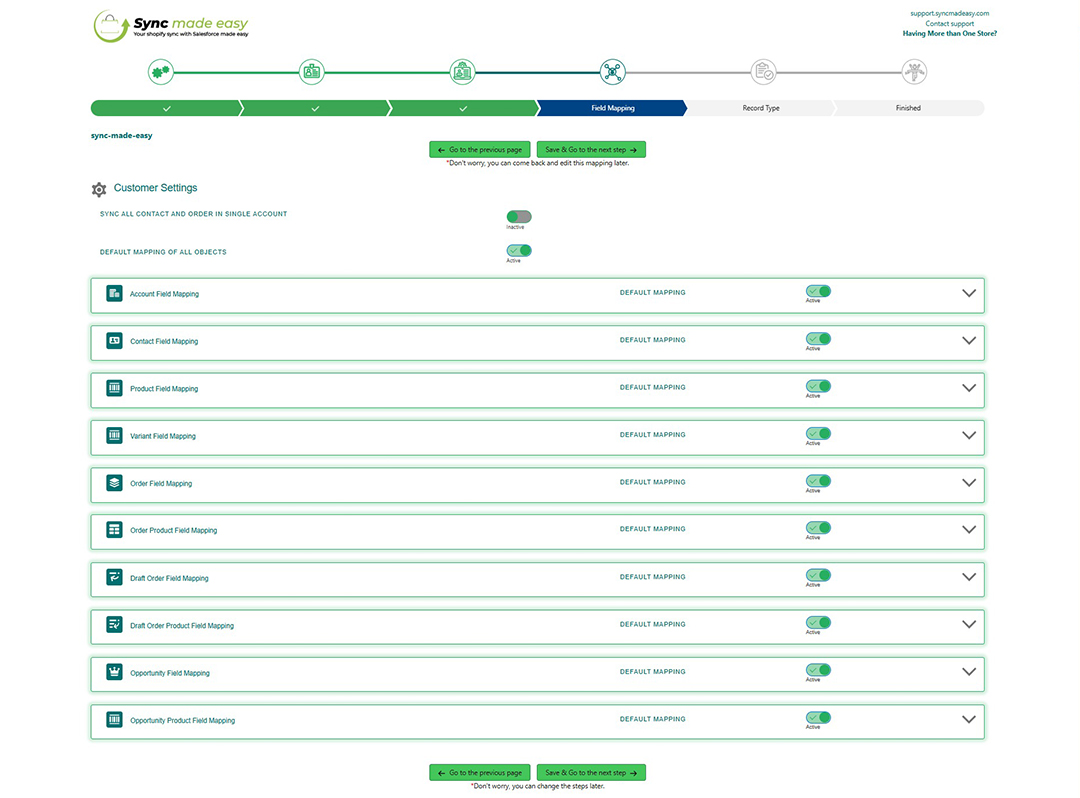
You can control how Shopify data maps to Salesforce fields.
- Toggle objects on or off
- Choose between Default Mapping or Custom Mapping
- Add custom fields by clicking “Add Row” within the object section
Additional Options:
- Enable “Sync All Contacts/Orders in Single Account” if you want all records synced under one Salesforce account.
- Enter the account name if this option is selected.
Note: Once you disable the Default Mapping for the Opportunity object, the Opportunity Settings section will appear. You can then set the default Stage and default Close Date.
Record Type Mapping
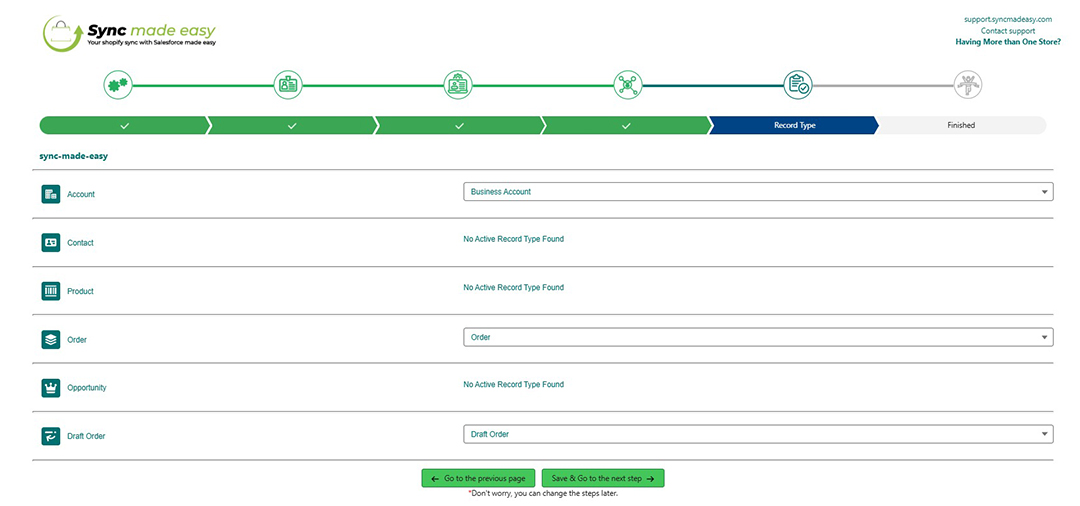
For each Shopify record being synced, select the appropriate Salesforce Record Type.
After completing this step, click “Save & Go to Next Page.”
Sync Legacy Records (Optional but Recommended)
On the final configuration page:
- Review and accept the Terms & Conditions
- Click “Import Sample Records”
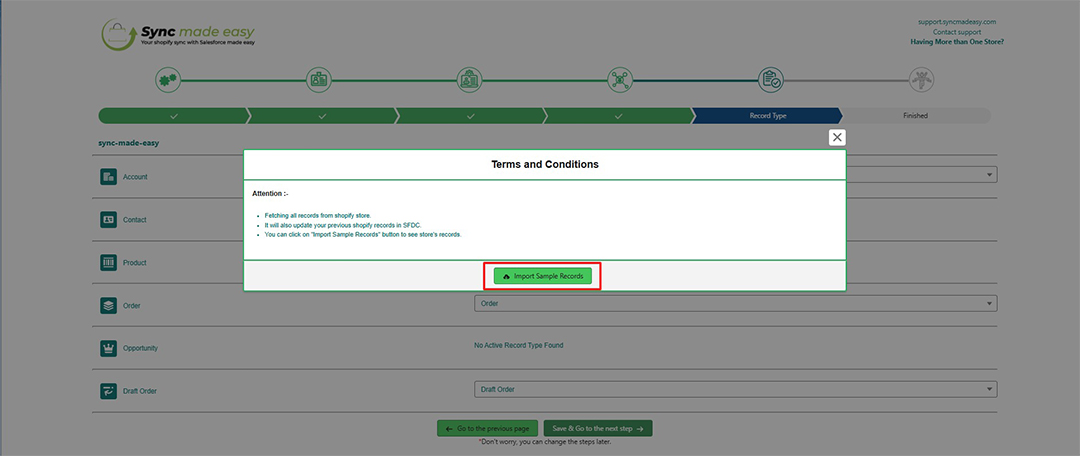
3. Then click “Start Sync.”
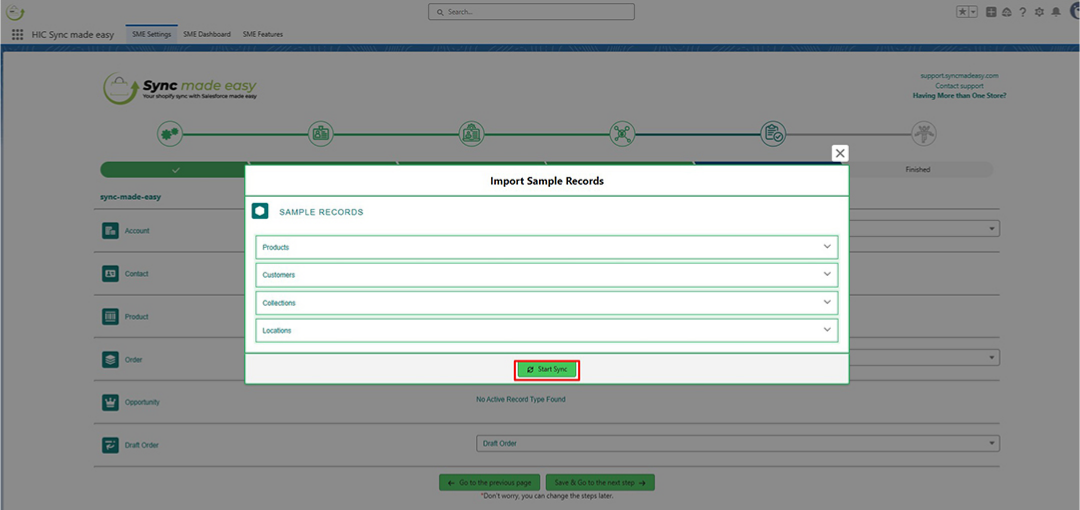
This will begin synchronizing your existing (legacy) Shopify records into Salesforce.
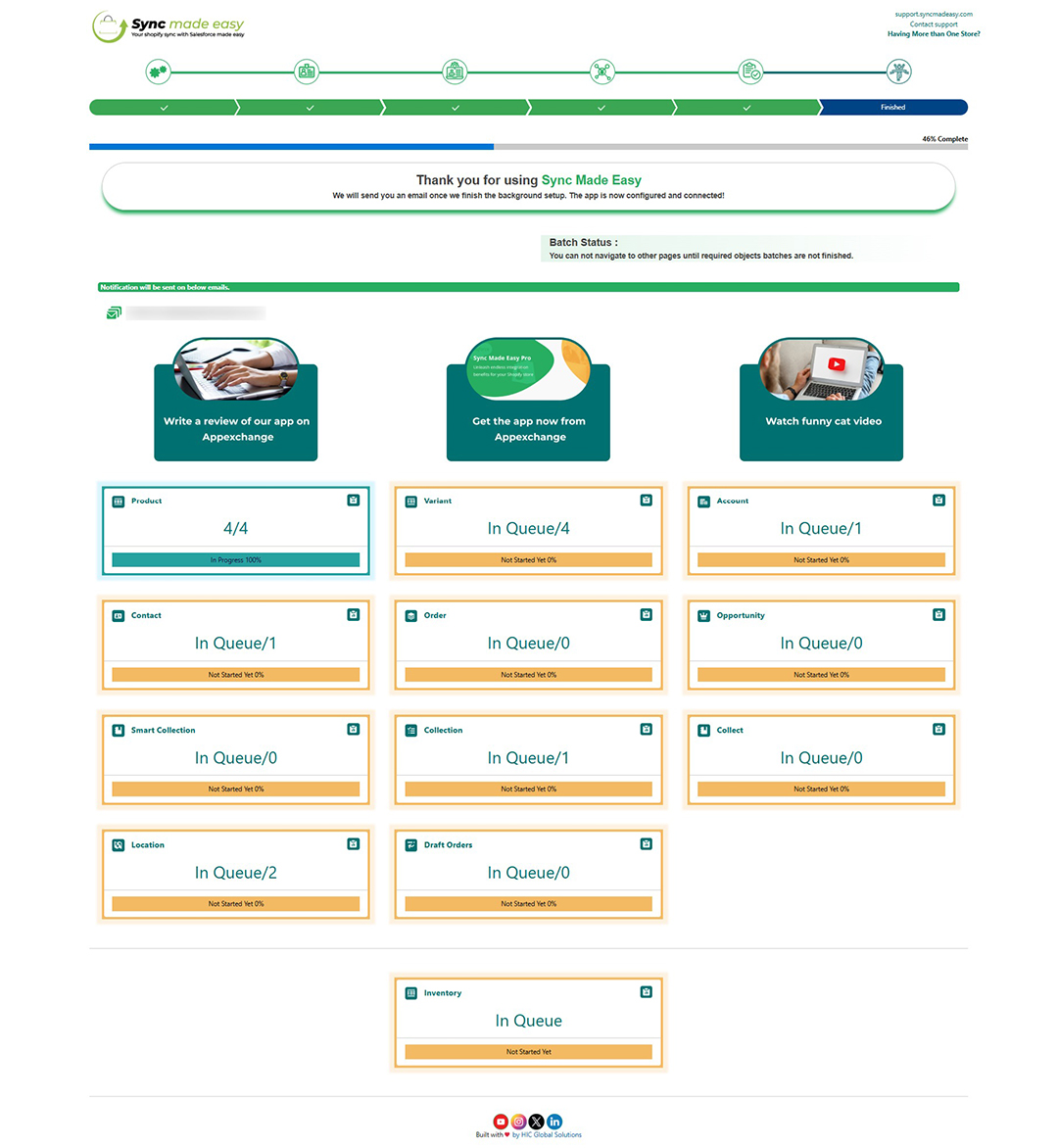
You’ll be able to monitor the sync progress in real time, giving you full visibility into what’s happening behind the scenes.
Conclusion
You’ve successfully connected and configured multiple Shopify stores with Salesforce using Sync Made Easy.
This centralized Shopify Salesforce connector ensures all your store data flows seamlessly into Salesforce, helping you manage customers, orders, and opportunities efficiently.
With this Shopify Salesforce integration in place, you can automate data sync, reduce manual effort, and streamline your sales and operations processes.
If you need assistance at any stage, visit the Sync Made Easy Support Center or contact the team.

No Data Found.

Docs Made Easy
#1 Salesforce Document Generation App

QB Sync Made Easy
QuickBooks to Salesforce Integration
